Running EnergyPlus
EnergyPlus is a simulation engine, so it was designed to be an element within a graphical user interface. However, it can be run standalone without such an interface. There are several options for performing a simulation with EnergyPlus:
- Graphical user interface
- Command line
- EP-Launch
In each case, a building model will be simulated in combination with a weather file for the appropriate building location.
Graphical User Interface
When running an EnergyPlus simulation within a graphical user interface, the exact method will vary depending on the specific program being used. You should read the documentation for that software to understand how to perform a simulation. In all cases, the interface will ultimately generate an EnergyPlus idf or epjson input file, execute the EnergyPlus simulation, and read the EnergyPlus output files to present results.
Command Line
EnergyPlus can be used as a command line tool within a Terminal window in Linux or MacOS or with the CMD prompt or PowerShell window under Windows. Basic usage using the command line approach is well documented in the QuickStart Guide. To learn more about the command line mode, you can type:
energyplus --help
when in the EnergyPlus folder. This will give the following display of options:
EnergyPlus, Version 9.6.0-ec0190a2fc
Usage: energyplus [options] [input-file]
Options:
  -a, --annual                 Force annual simulation
  -c, --convert                Output IDF->epJSON or epJSON->IDF, dependent on
                               input file type
  -d, --output-directory ARG   Output directory path (default: current
                               directory)
  -D, --design-day             Force design-day-only simulation
  -h, --help                   Display help information
  -i, --idd ARG                Input data dictionary path (default: Energy+.idd
                               in executable directory)
  -j, --jobs ARG               Multi-thread with N threads; 1 thread with no
                               arg.
  -m, --epmacro                Run EPMacro prior to simulation
  -p, --output-prefix ARG      Prefix for output file names (default: eplus)
  -r, --readvars               Run ReadVarsESO after simulation
  -s, --output-suffix ARG      Suffix style for output file names (default: L)
                                  L: Legacy (e.g., eplustbl.csv)
                                  C: Capital (e.g., eplusTable.csv)
                                  D: Dash (e.g., eplus-table.csv)
  -v, --version                Display version information
  -w, --weather ARG            Weather file path (default: in.epw in current
                               directory)
  -x, --expandobjects          Run ExpandObjects prior to simulation
--convert-only                 Only convert IDF->epJSON or epJSON->IDF,
                               dependent on input file type. No simulation
Example: energyplus -w weather.epw -r input.idf
EnergyPlus can be run by specifying a number of options followed by the path to the input file. The file itself is usually in IDF (Input Data File) format or epJSON format, but it may also be in IMF (Input Macro File) format to be run with EPMacro using the --epmacro option. Each option has a short form (a single-character preceded by a single dash, e.g., -h) and a long form (a more descriptive string of characters preceded by double dashes, e.g., --help). Several of these options are commonly used including the weather, output-prefix, expandobjects, and readvars options. The following are some examples of using the command line options.
Pre-processing using EPMacro and ExpandObjects:
energyplus -w weather.epw -m -x input.imf
Forcing design-day only simulations:
energyplus -D input.idf
Giving all output files the prefix being the same as the input file (building.idf) and placing them in a directory called output:
energyplus -w weather -p building -d output building.idf
If no arguments are passed on the command line, EnergyPlus expects the input and weather files to be located in the current working directory and name in.idf (or in.epjson) and in.epw respectively.
EP-Launch
For users that want a simple way of selecting files and running EnergyPlus, EP-Launch provides this and more. In addition, EP-Launch can help open a text editor for the input and output files, open a spreadsheet for the result files, a web browser for the tabular results file, and start up a viewer for the selected drawing file. There are two different versions of EP-Launch currently part of the EnergyPlus system.
The main screen of EP-Launch 2 is shown below:
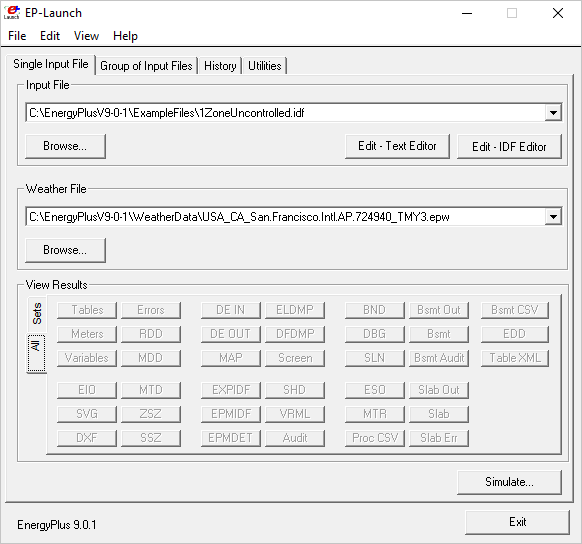
EP-Launch 2
It is a Windows program only. EP-Launch 2 is included in the EnergyPlus installation package when installing on Windows, so no additional steps are needed to run it. It is located in the main "root" folder of EnergyPlus, usually, a folder named EnergyPlusVx-x-x, where the x's are the version number.
In 2018, EP-Launch 3 was developed, and its main screen is shown below:
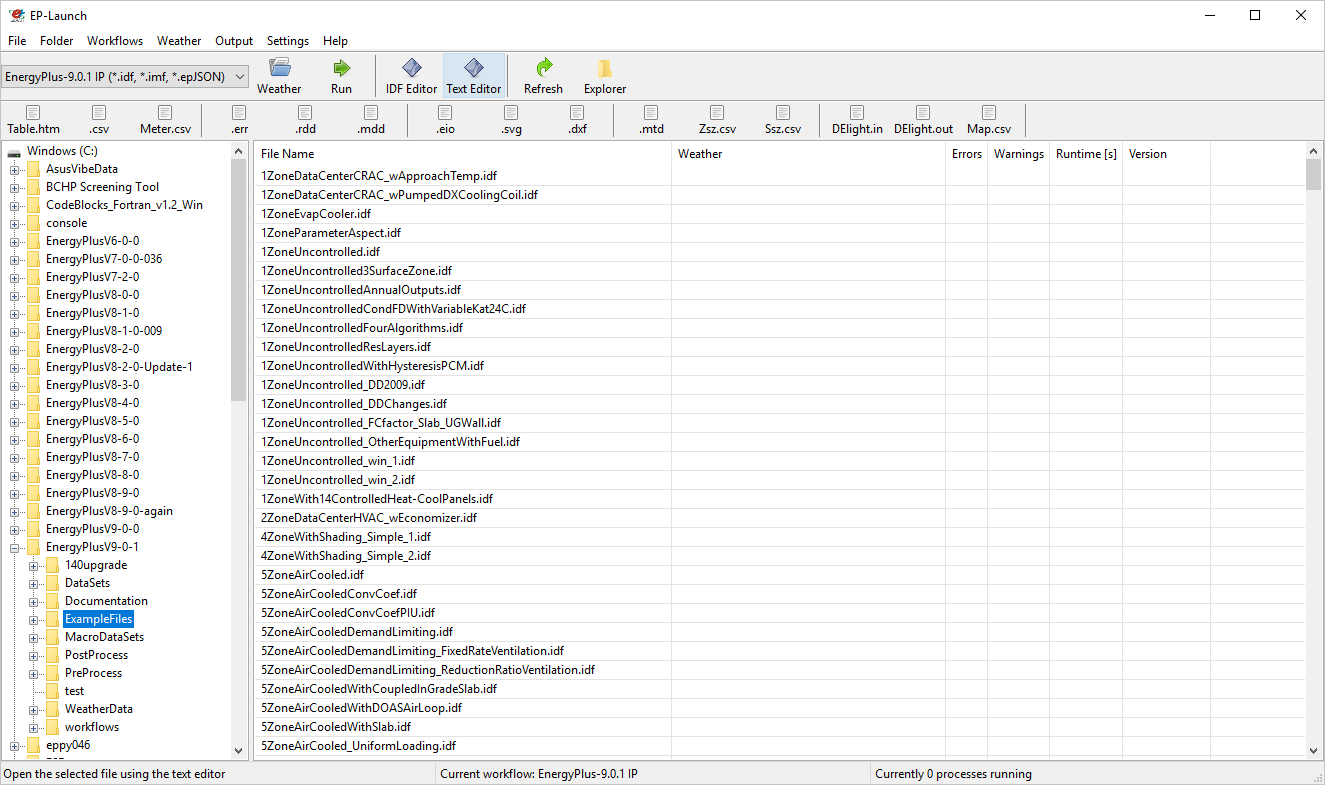
EP-Launch 3
EP-Launch 3 is not part of the EnergyPlus installation package and needs to be installed separately. It is also open source and is available from GitHub, and it is documented on readthedocs or in the docs folder on GitHub. EP-Launch 3 works on Windows, MacOS, and Linux systems and is written in Python.
While both EP-Launch 2 and EP-Launch 3 do many of the same functions, the interface is quite different. For now, EP-Launch 2 allows groups of files to be run together and has access to some utilities that the newer version does not. EP-Launch 3 works across multiple platforms and is a built from the ground up to be flexible and extensible so that individuals can make their own workflows that run whatever programs they need to run.